POWER CAPTCHA continuously checks whether access is authorized – whether by humans or bots. Depending on your license, you can adjust the protection behavior of POWER CAPTCHA yourself and thus define the security level and usability factors to protect your forms and login areas. The Enterprise version also offers a 2-factor solution via email for barrier-free access. The no-captcha setting also protects your site without a captcha display. Find out more about the captcha features in detail in our setting examples.
Every interaction with POWER CAPTCHA generates an encrypted code (client footprint), which POWER CAPTCHA evaluates and stores. For subsequent interactions, we then, for example, increase the difficulty level of the solution or block further interactions for a specified period of time. You can find a more detailed description of the system in our free white paper.
You can customize the security settings for your forms to suit your needs and set the security level yourself. The available settings depend on your POWER CAPTCHA plan. Die folgenden Beispiele zeigen einige Einstellungsmöglichkeiten im Rahmen der Enterprise-Lizenz.
To protect your login areas from unauthorized access, you can set the protection behavior of POWER CAPTCHA (as part of the Enterprise plan) as follows:
Determine the protection level
What difficulty level should the displayed captcha have? When should the complexity be increased?
How long should users remain blocked in the event of a blocking time?
After what monitoring period should POWER CAPTCHA reset the user’s previous events?
After how many interactions should a captcha be displayed for the first time?
Example: what should happen in the event of a lock time? If you have a different requirement than the standard message, please contact our sales department.
Activate the integrated 2-factor solution for barrier-free access to your protected area.
With the No Captcha setting, the data is transmitted and checked in the background, invisible to users. This means that you use the security mechanisms of POWER CAPTCHA (e.g., limiting login attempts per hour) without a captcha image being displayed.
Limit the number of permitted requests from users/bots (per website or domain). If the limit you set is exceeded, you can – depending on your strategy – trigger various follow-up actions, e.g.
The open programming allows you to make individual adjustments by your own developers.
For example, you could delay requests (extending the response time of POWER CAPTCHA) or trigger a real-time alert (e.g. via e-mail).
Use POWER CAPTCHA’s e-mail authentication for barrier-free access! Simply click on the button “Access code via e-mail”.
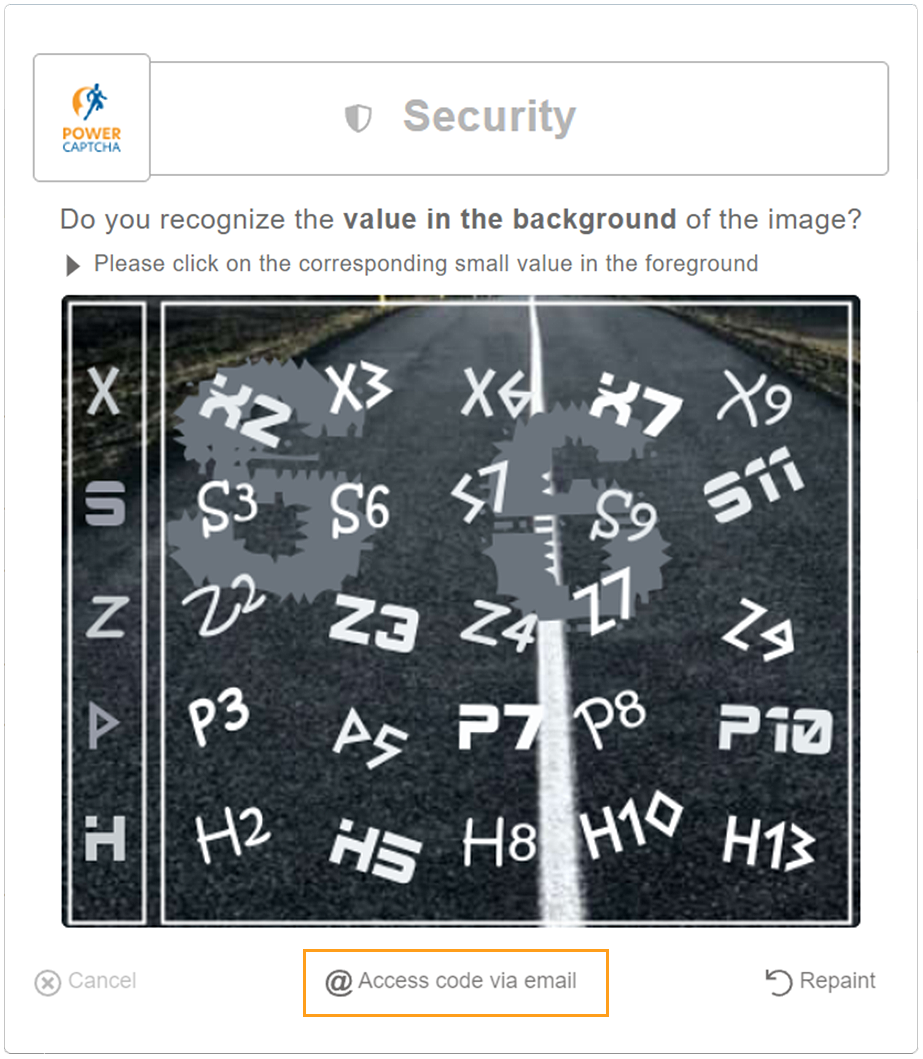
POWER CAPTCHA then sends you an access code via e-mail, which you can enter in the verification mask instead of the captcha solution. Try out the feature in our demo!
Get started with POWER CAPTCHA

You want to use POWER CAPTCHA on your website? Then get your license here and follow our step-by-step instructions.